Sales Return, Sales Return Receive and Credit Note process
Create Sales Return
Be sure Sales Order is Packed, Invoiced, Invoice is Marked as Sent, and SO is shipped.
1. Go to Sales Order and click "Create" -> "Sales Return" button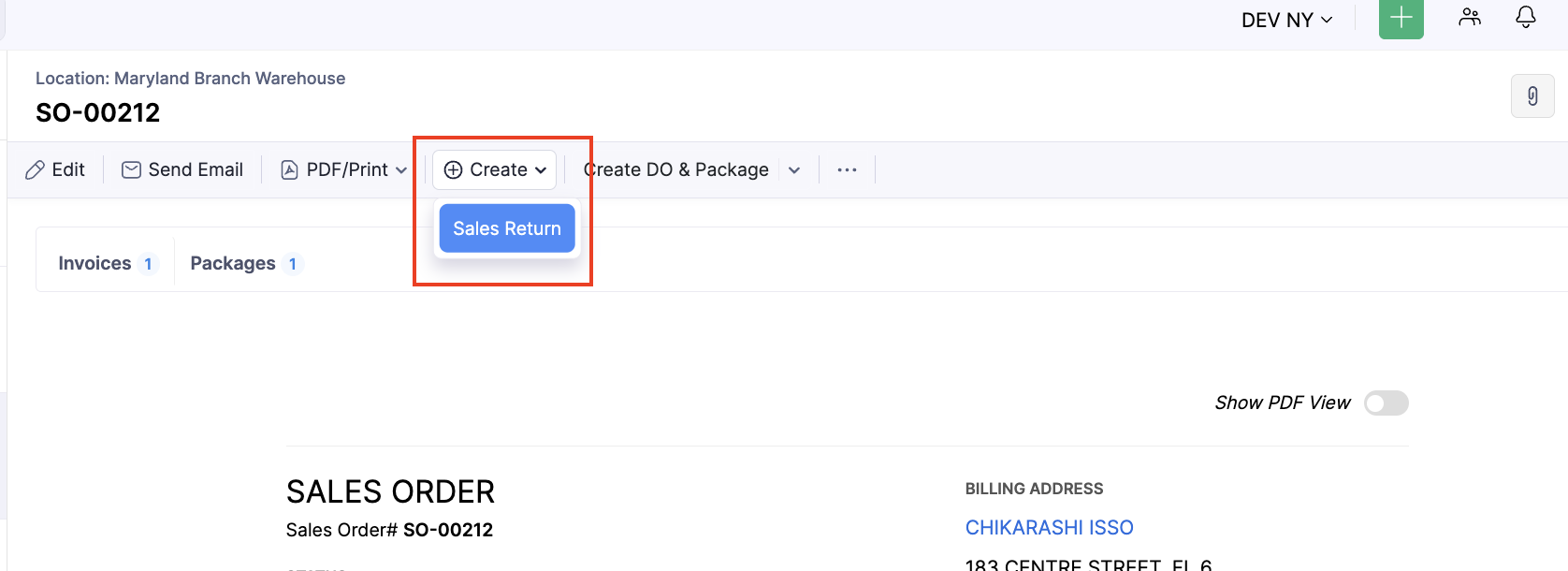
2. Add required information. Notes(For Internal Use) field will be copied to Sales Return Receive. Save and Approve the record
NOTE: You can also edit the Sales Return after creation to populate this field.
Create Sales Return Receive and Credit Note with custom button
Be sure Sales Return is Approved
1. Open Sales Return
2. Click "Receive and Credit Note" button
The button is unavailable when the Sales Return Receive is already created
3. The Sales Return Receive and Credit Note will be automatically created. The Batch# format will be autogenerated as: "batchNo_SalesReturnNo". When Credit Note is created, the stock will be returned and appear in Creator Inventory Summary Report RMA Bin.
If the Sales Return contains items from Invoice which have multiple Batches, the Alert will be shown. In this case, please, confirm the Batch# with Warehouse and create Sales Return Receive and Credit Note manually as described below.
Create Sales Return Receive and Credit Note with default buttons
1. Go to Sales Return Click Receive button. Add information for received batch and save the record
2. Go to Sales Return and Click Create Credit Note button. Add required information and save the record. When Credit Note is created, the stock will be returned and appear in Creator Inventory Summary Report RMA Bin.